These instructions are for Workplace Stronghold users installing Workplace for Mobile on an additional device.
-  If you are installing Workplace Mobile for the first time, see Installing Workplace Mobile.
-  If you are a Blue Border user installing Venn's Workplace app on your mobile device, see Set Up Venn on an Apple Mobile Device or Set Up Venn on an Android Mobile Device.
Download and Install Workplace for iOS
- Go to login.venn.com/online/downloads on the iOS device.
- Tap AppStore next to Workplace for iOS.
- Tap Get in the App Store.
You may need to enter your Apple ID Credentials to verify the download.
- Tap Open to open Workplace for iOS.
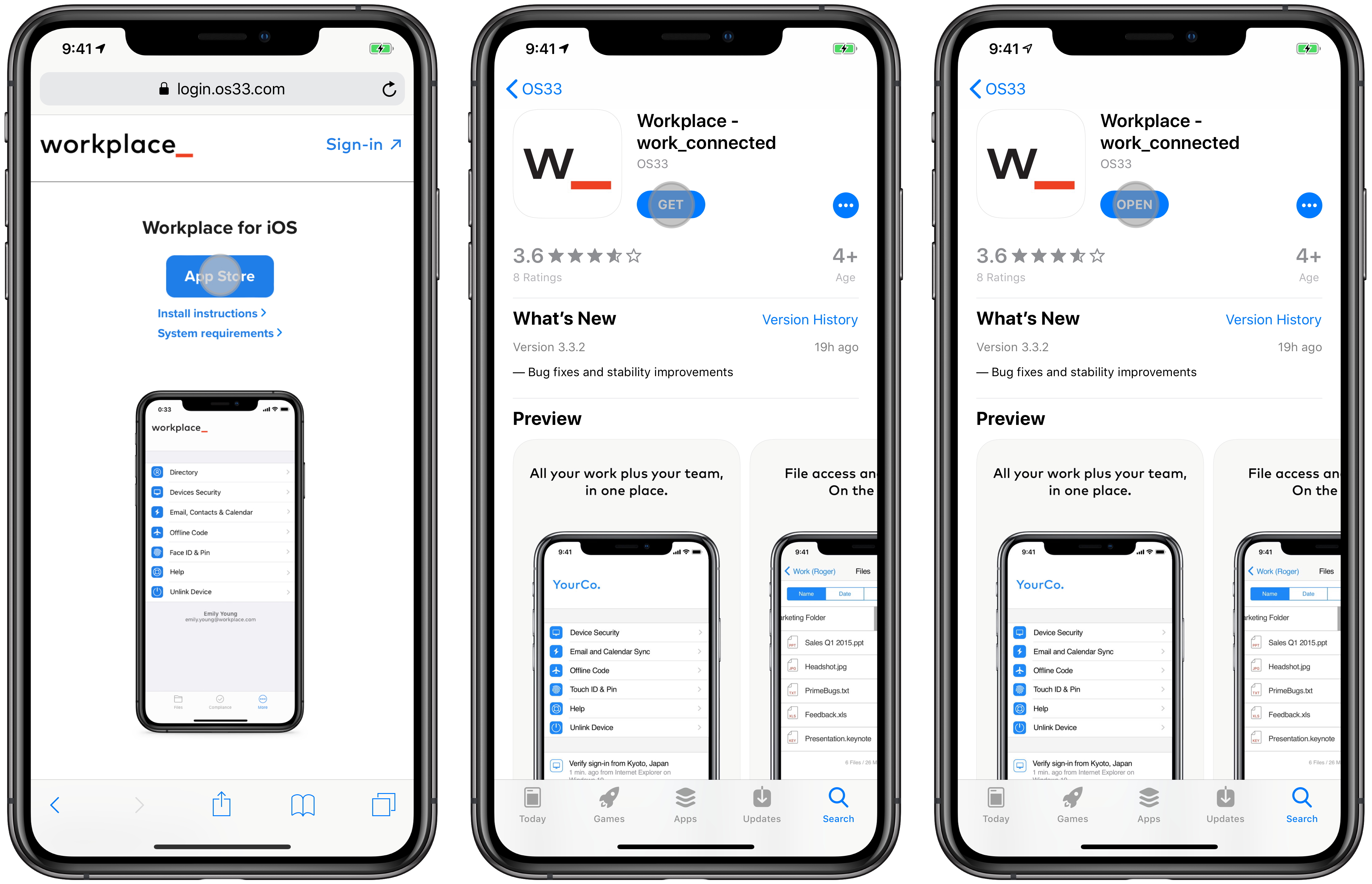
- Enter your Username and Password on the sign in screen and Sign In.
Workplace will need to verify this sign in attempt with multi-factor authentication and will send a notification to the original device where you have Workplace downloaded.
-
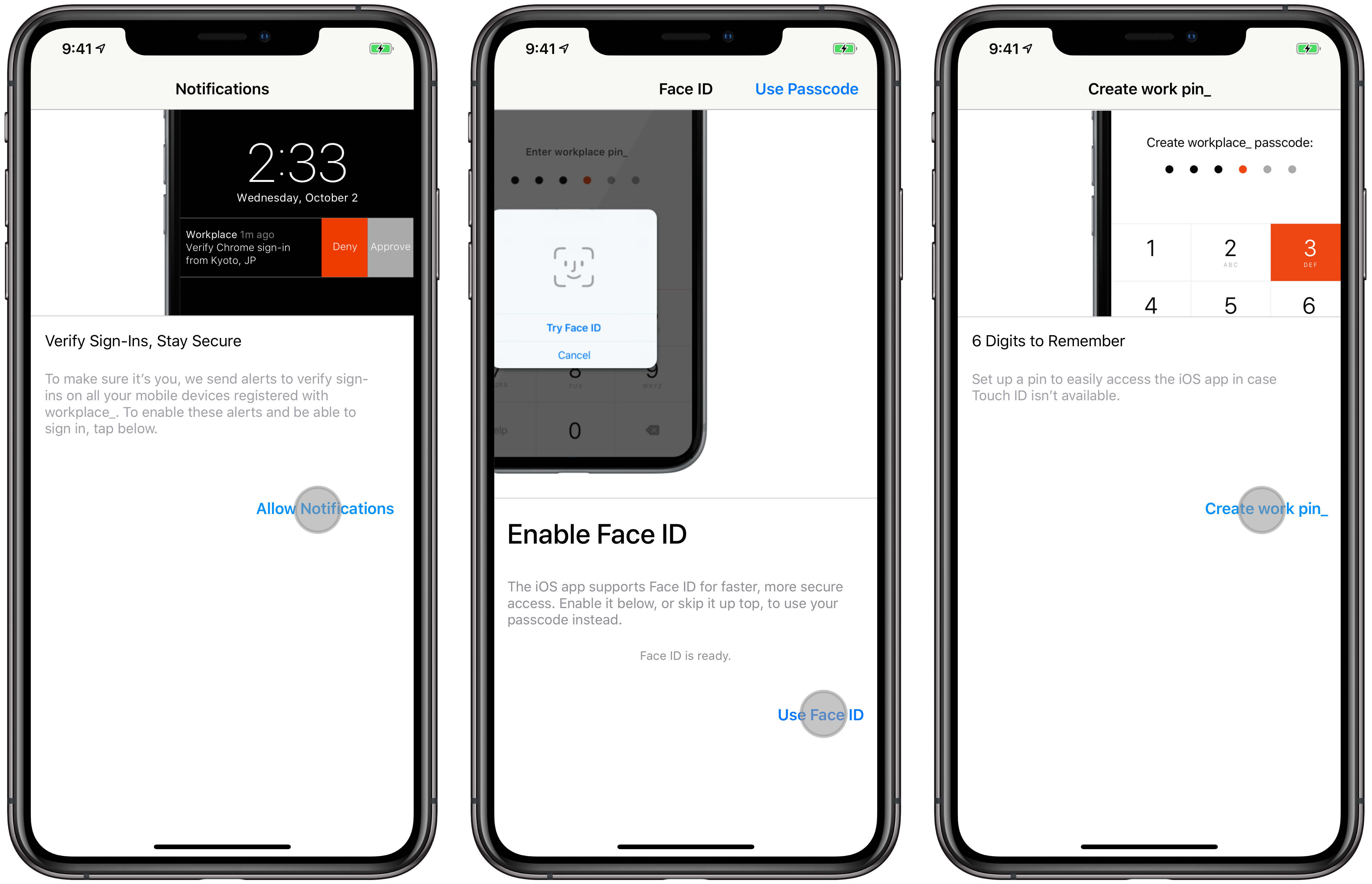
Verify the login session via multi-factor authentication.
- Tap Allow Notifications.
-
Create a work pin and Enable biometric authentication.
Return to top
Download and Install Workplace for Android
- Navigate to login.venn.com/online/downloads on the Android device.
- Tap AppStore next to Workplace for Android.
- Tap Get in the Google Play Store.
- Tap Open to open Workplace for Android.

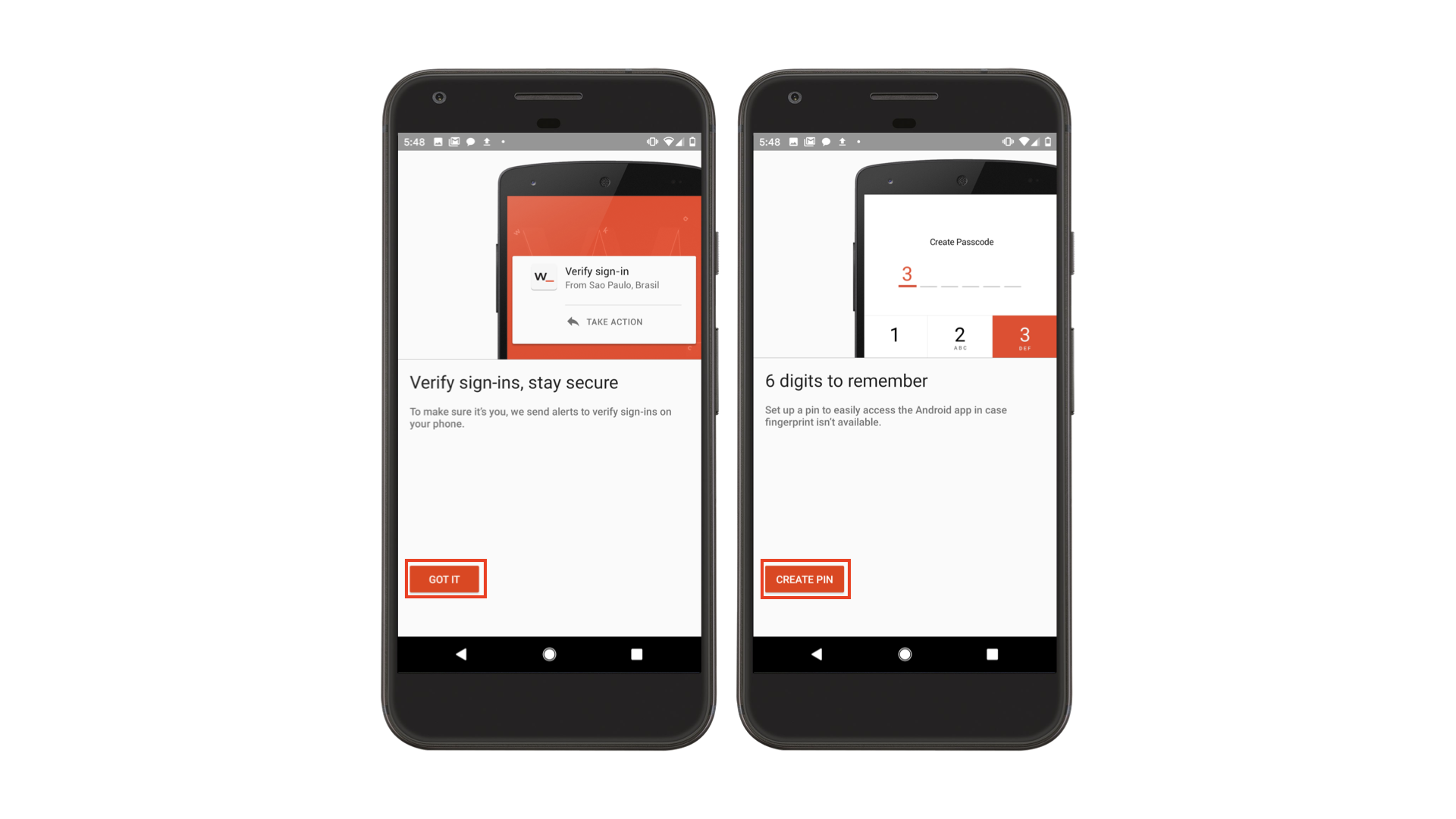
- Enter your Username and Password on the sign in screen and Sign In.
Workplace will need to verify this sign in attempt with multi-factor authentication and will send a notification to the original device where you have Workplace downloaded.
-
Verify the login session via multi-factor authentication.
- Tap Got it to allow notifications and Create a work pin.